
There are 2 things that you need to know about your contacts for outbound:
- LinkedIn profile
With email it’s easy, you can use any Chrome extensions or tools for finding emails.
With LinkedIn it’s a bit harder…
You can find anyone’s LinkedIn profile on your own.
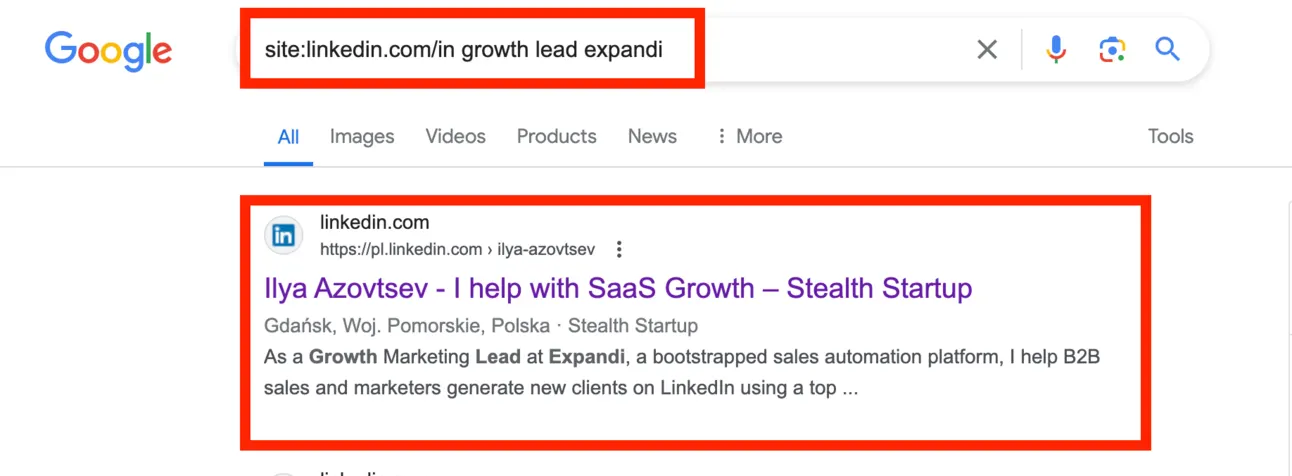
Just simply Google name/email/company/title + LinkedIn. The first result will be always (almost) accurate:
But what if you need to find dozens or even hundreds of LinkedIn profiles?
I have a solution for you!
I’ve created a script that will find anyone’s LinkedIn profile directly in your Google Sheets:

It takes you only 5 mins to set it up and after, this script will find all the info & add it to your Google Sheets!
I’ve made a video:
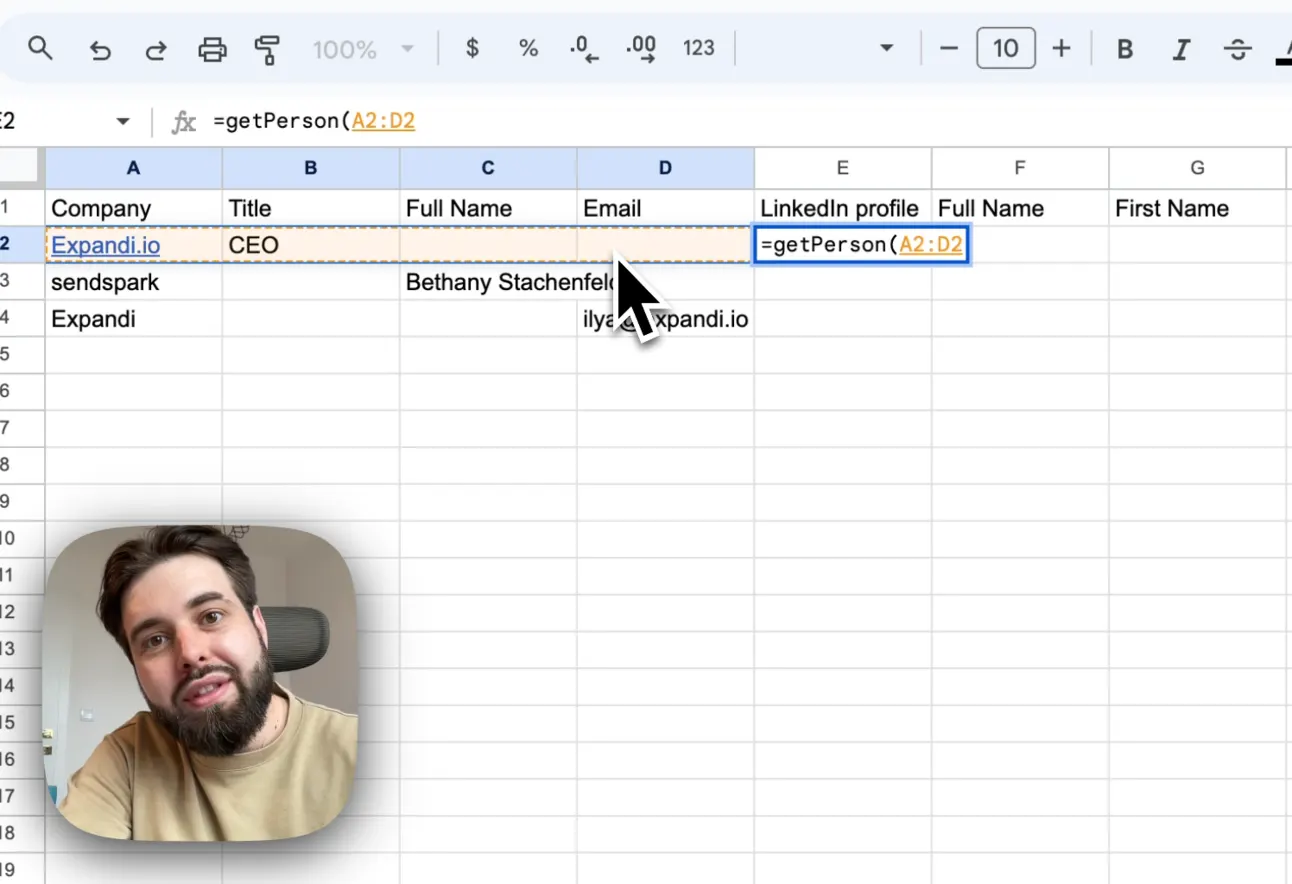
With the copy & paste script for you:
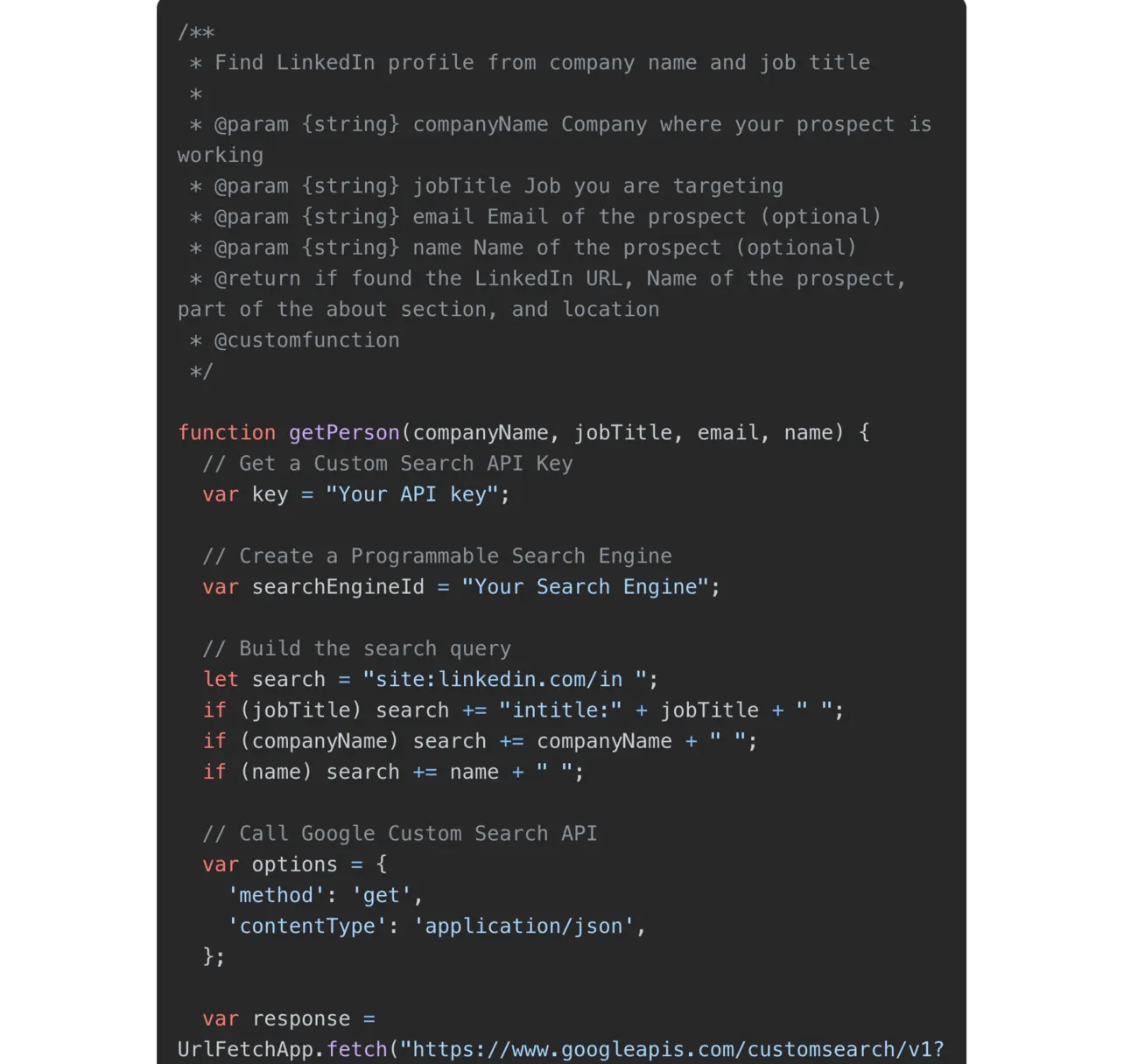
Note: This script will use Programmable Search Engine & API key from your Google account and it’s limited to 100 searched per DAY for FREE (if you want to scale, it’s still pretty cheap).
Here is the video guide:
Step #1 Set up your Search Engine & API key
Attention! This is the hardest part that can take up to 5 mins of your time (but you have to do it once 😅).
How this script works?
Basically it uses your Google Account’s API & Search Engine to make searches for row/contact you have in your Sheets on your behalf. To make it happen, you need to create your:
#1 Your Custom Search API Key
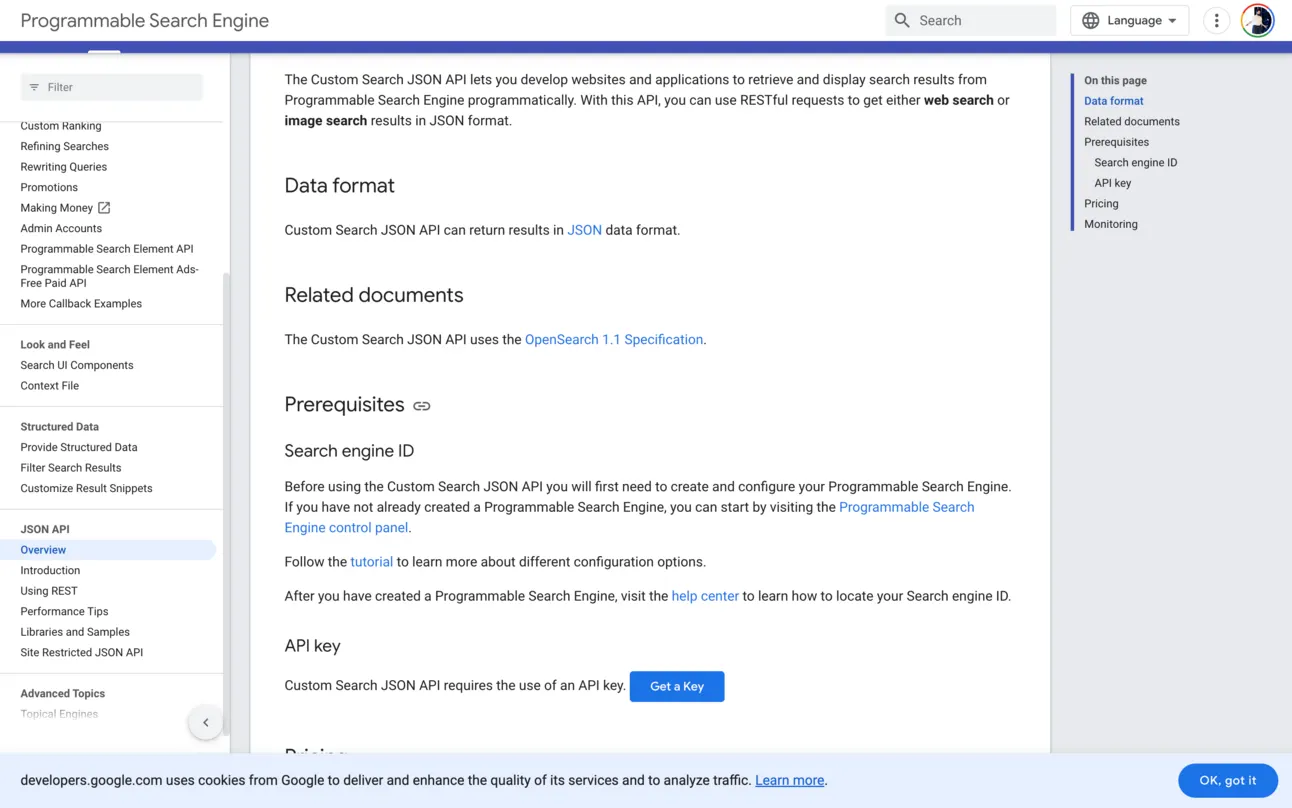
Go here & scroll down to “API key” section and click on “Get a Key” → https://developers.google.com/custom-search/v1/overview
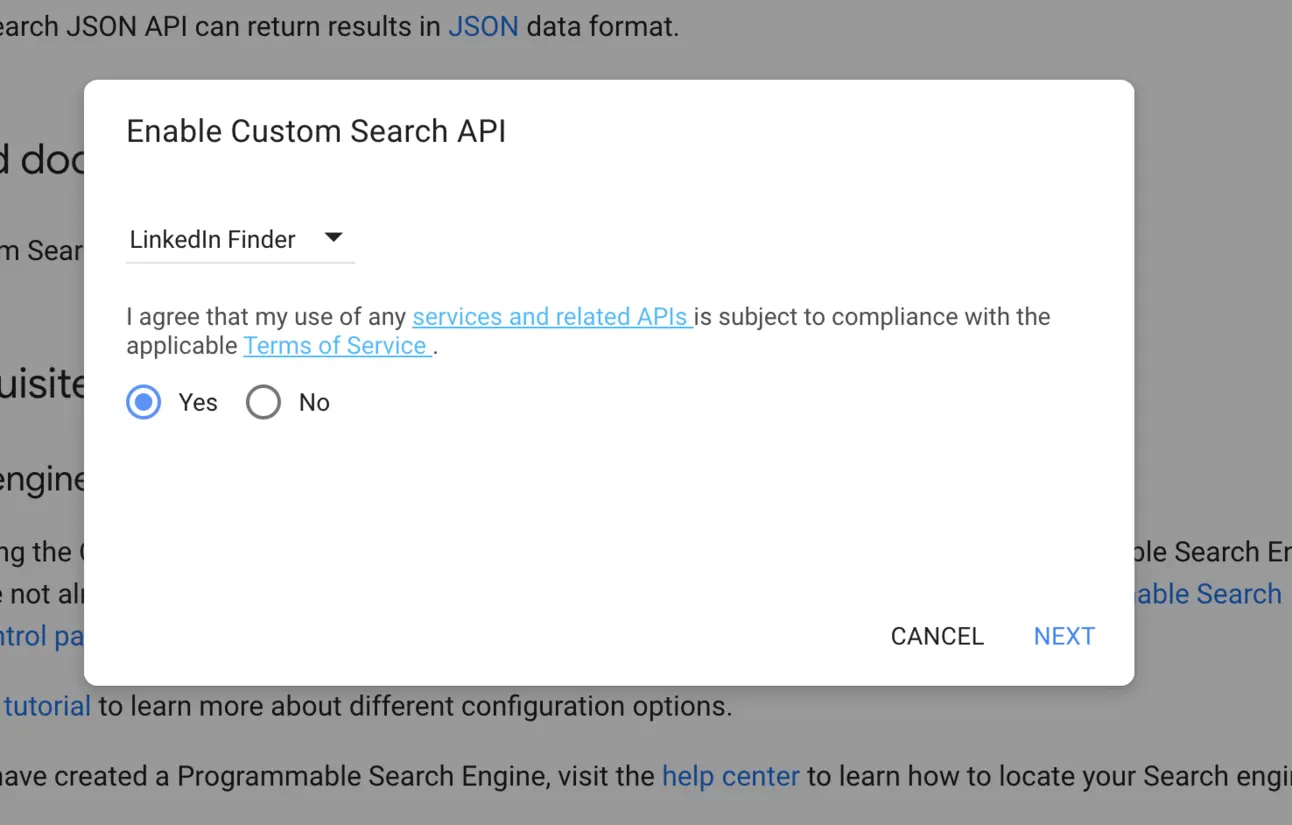
Name it & agree with terms of services:
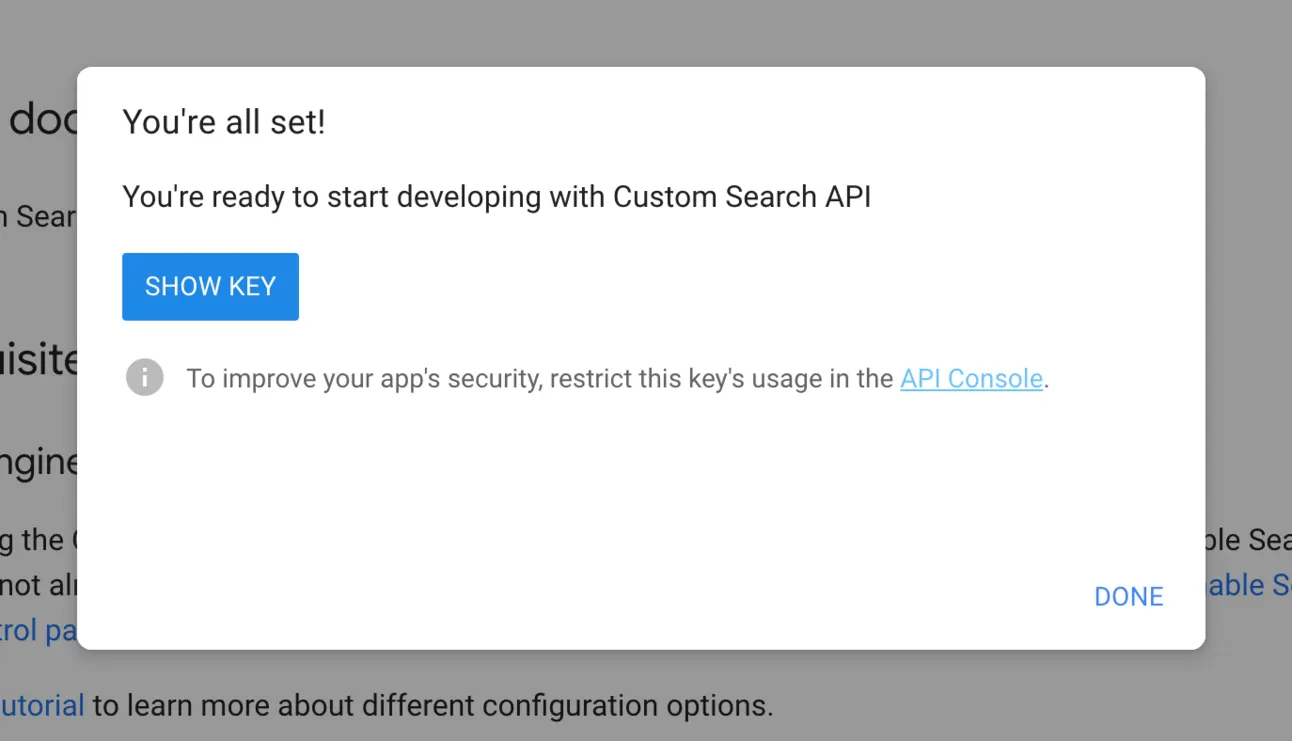
Click on “Show Key”:
and copy this key:
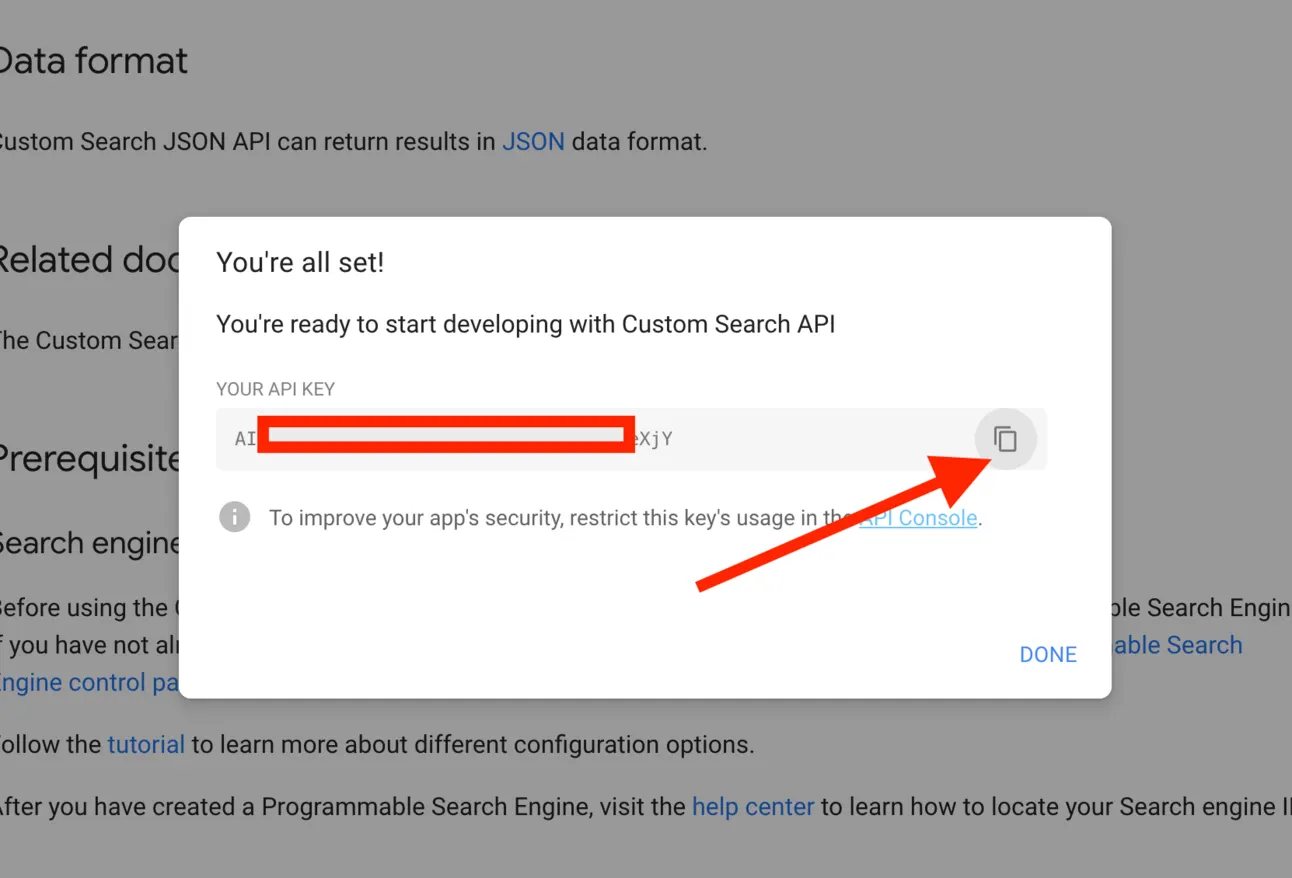
Save this API key, we’ll use it in 1 min!
But now we need to also set up your Search Engine ID:
#2 Your Search Engine ID
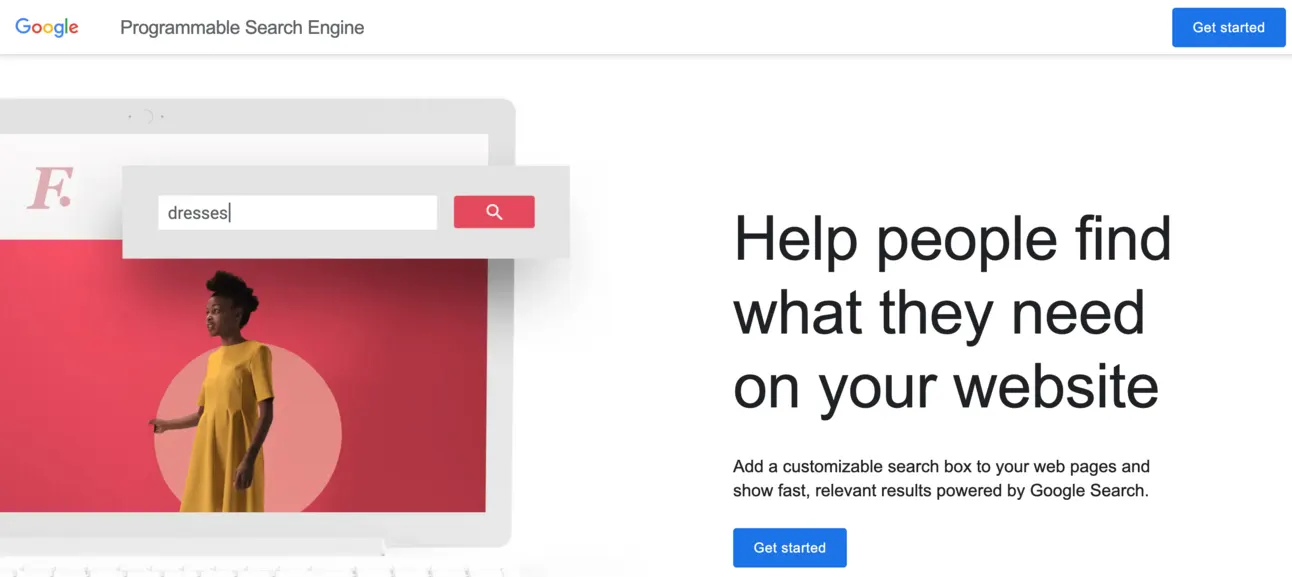
Go here & click “Get Started” → programmablesearchengine.google.com
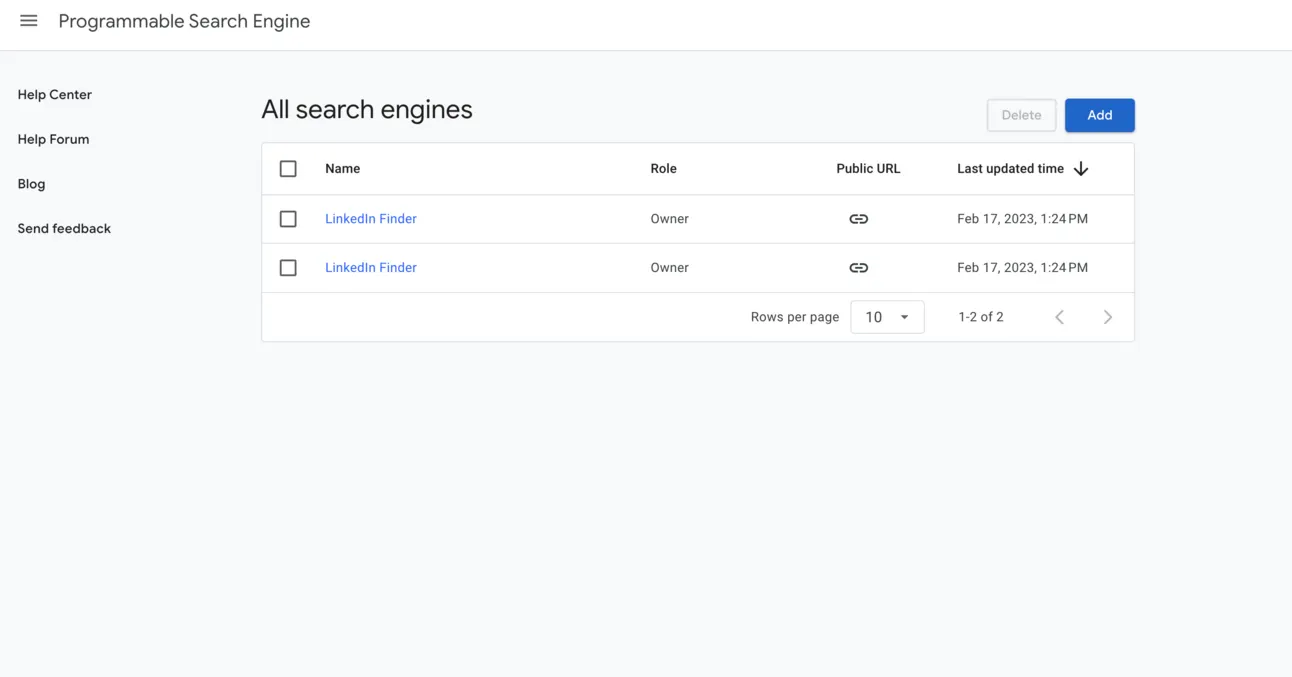
Create a new a new Search Engine by clicking on “Add”:
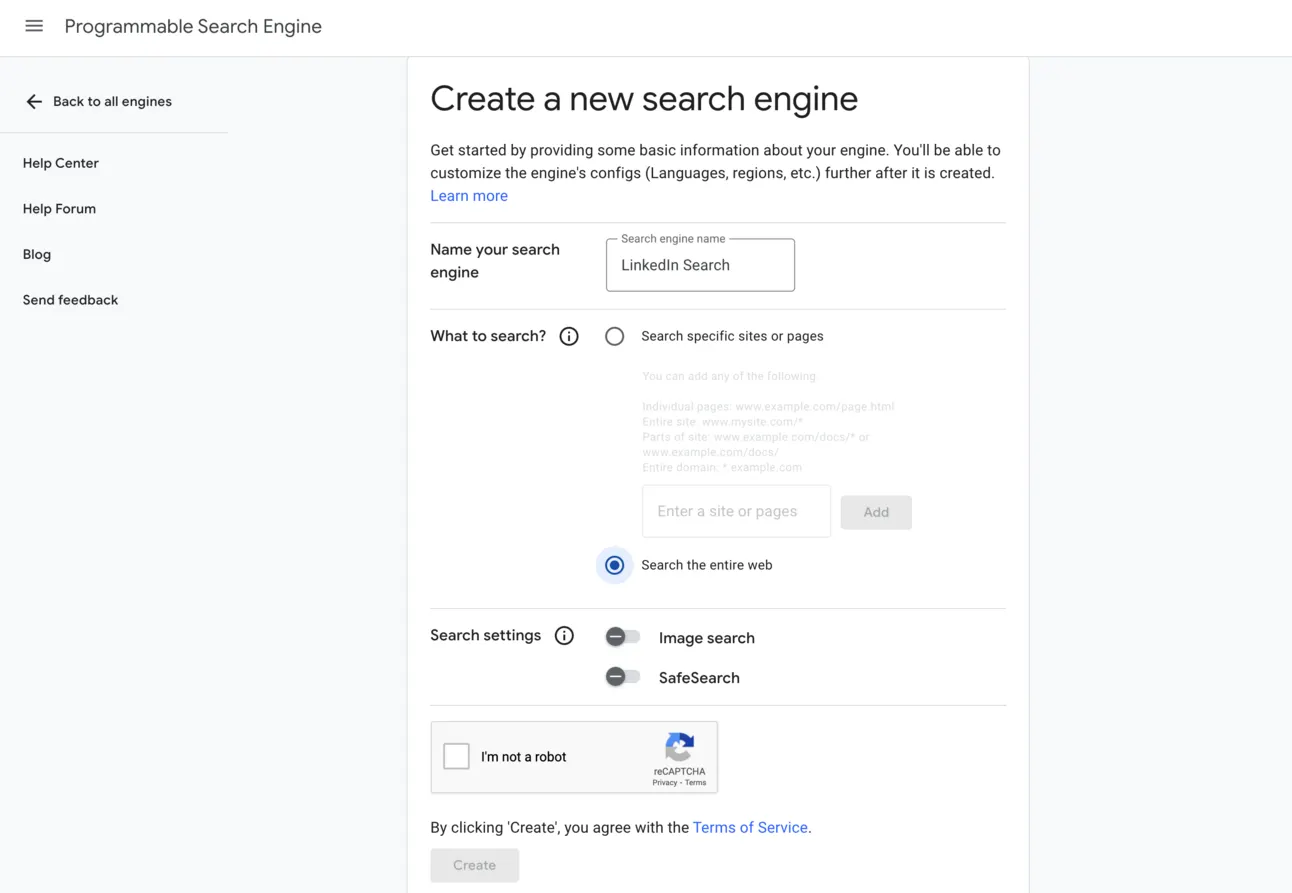
Name it & tell it to search the entire web and verify that you’re not a robot
(unless you’re robot 🤖)
Copt the part after ?cx=….
As it’s show on screenshot.
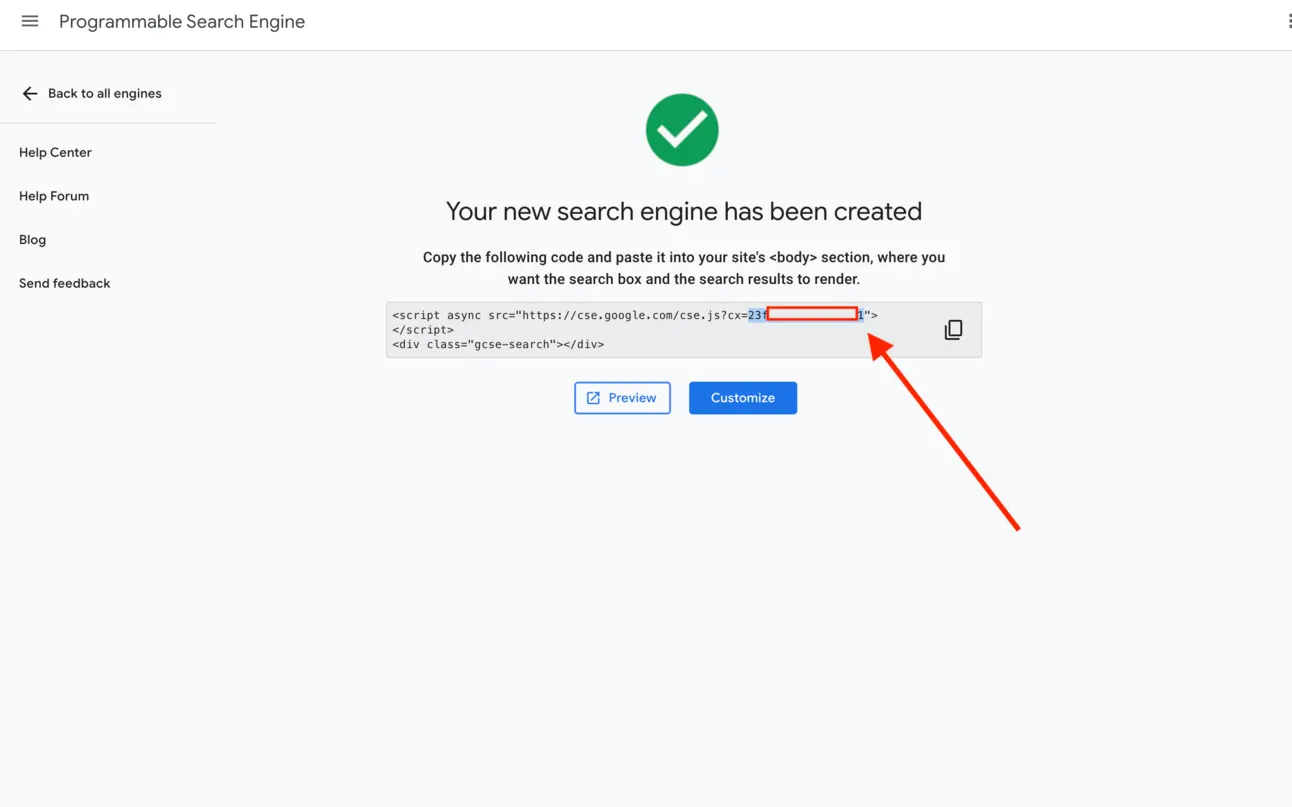
Save this Search Engine ID.
Now we gonna implement it in the script and it’ll find us people’s LinkedIn profiles!
Step #2 Add a script to Apps Script in Google Sheets
The hardest part is done, now you just need to add a script & your Search Engine ID & API to it, and start enriching your list of contacts with data from LinkedIn!
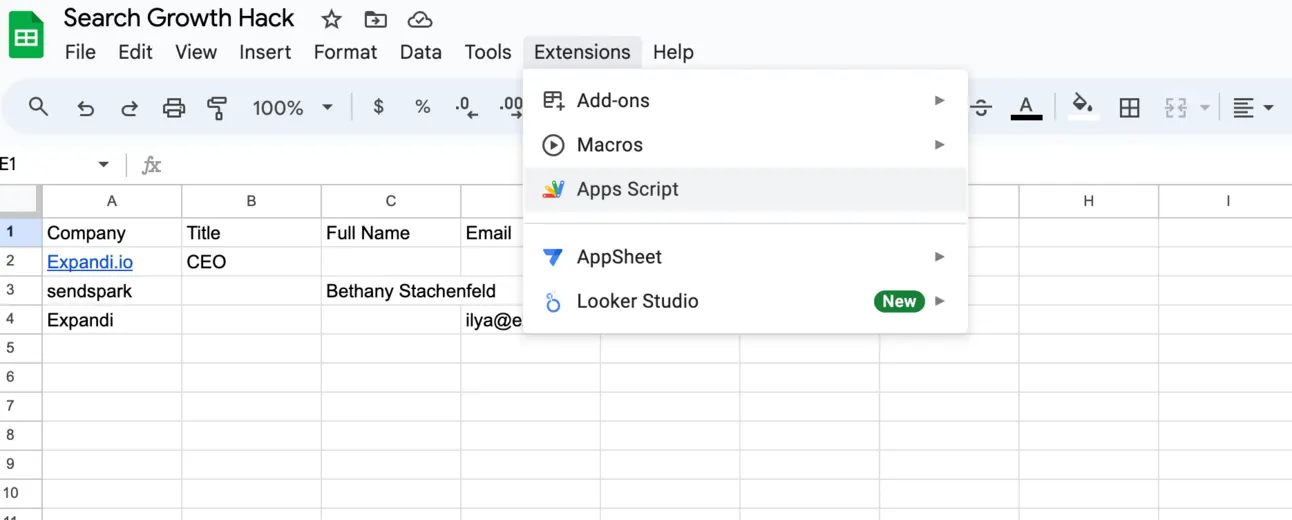
So, open Google Sheets, click on Extensions and choose Apps Script:
Once you open it, pls delete everything that is there by default:
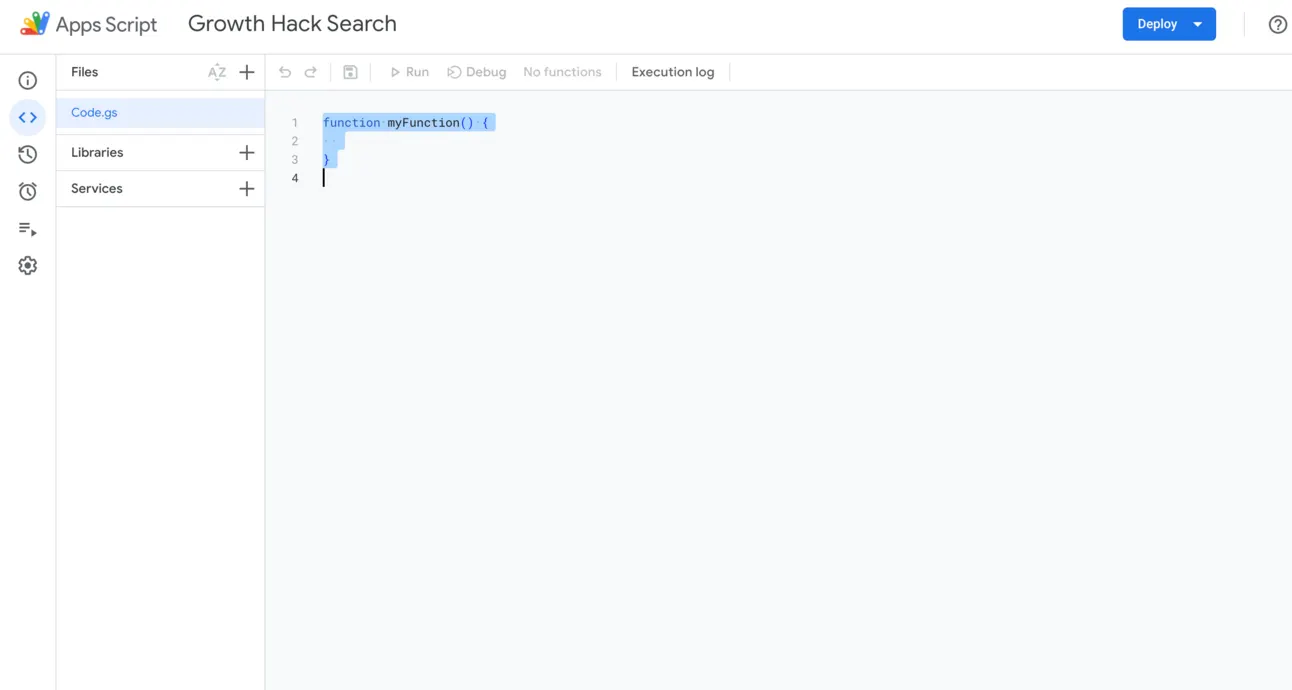
Add this script instead:
/**
 * Find LinkedIn profile from company name and job title
 *
 * @param {string} companyName Company where your prospect is working
 * @param {string} jobTitle Job you are targeting
 * @param {string} email Email of the prospect (optional)
 * @param {string} name Name of the prospect (optional)
 * @return if found the LinkedIn URL, Name of the prospect, part of the about section, and location
 * @customfunction
 */

function getPerson(companyName, jobTitle, email, name) {
  // Get a Custom Search API Key
  var key = "Your API key";

  // Create a Programmable Search Engine
  var searchEngineId = "Your Search Engine";

  // Build the search query
  let search = "site:linkedin.com/in ";
  if (jobTitle) search += "intitle:" + jobTitle + "  ";
  if (companyName) search += companyName + "  ";
  if (name) search += name + "  ";

  // Call Google Custom Search API
  var options = {
    'method': 'get',
    'contentType': 'application/json',
  };

  var response = UrlFetchApp.fetch("https://www.googleapis.com/customsearch/v1?key=" + key + "&q=" + encodeURIComponent(search) + "&cx=" + searchEngineId, options);

  // Parse the response
  var items = JSON.parse(response).items;
  if (!items || items.length == 0) {
    return ["No results found"];
  }

  var result = items[0];
  var url = result.formattedUrl;
  var title = result.title.split(" - ")[0];

  // Extract additional details
  var snippet = result.snippet;
  var aboutSection = snippet.split("...")[0];
  var location = snippet.split("•")[1] ? snippet.split("•")[1].trim() : "";

  var nameParts = title.split("  ");
  var firstName = nameParts[0];
  var lastName = nameParts.length > 1 ? nameParts.slice(1).join("  ") : "";

  // Display the results in multiple columns
  return [[url, title, firstName, lastName, aboutSection, location]];
}
Remember, a few mins ago we generated API Key & Search Engine?
Now you just need to add your keys here:
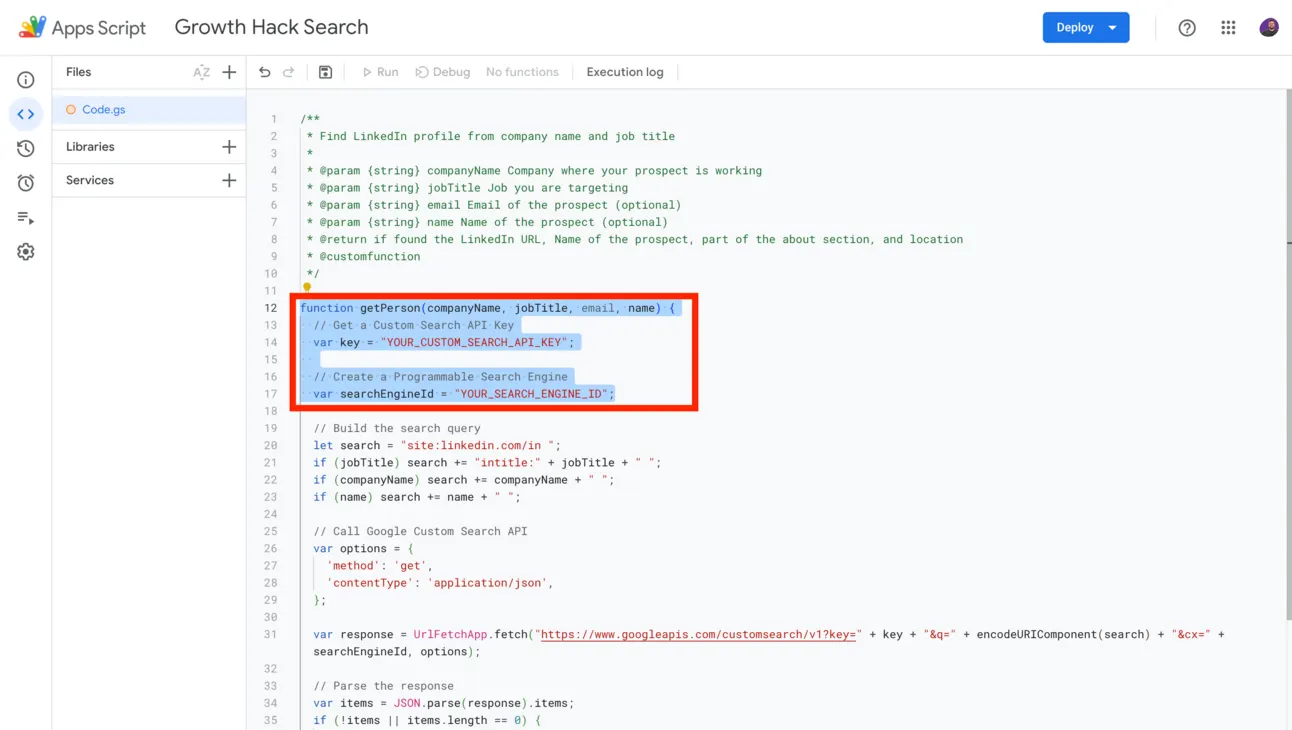
So your code will look like this:
(I blur my own API keys, so you can’t use mine 😛 )
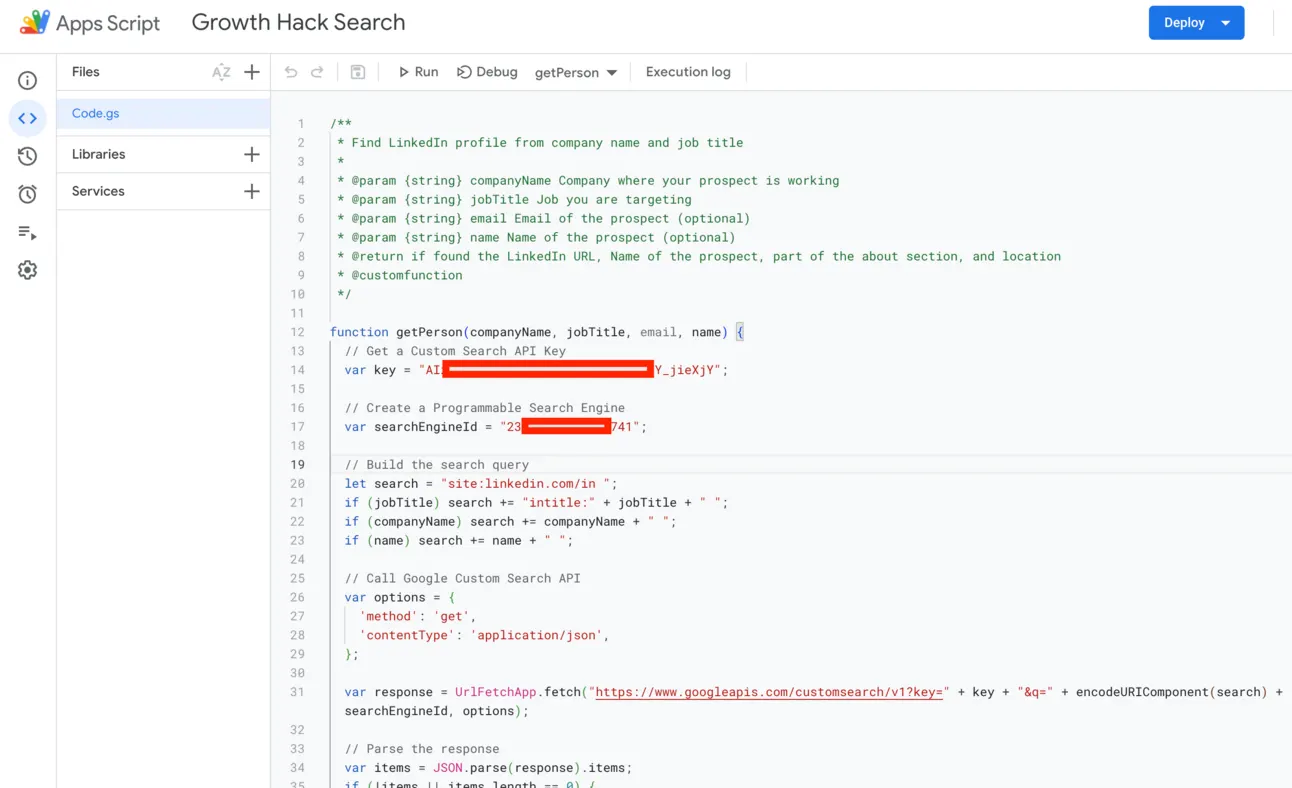
Now, just click “Save” button!
And we’re ready to go with data enrichment inside your Google Sheets!
Step #3 Use the formula in Google Sheets to find LinkedIn Urls
This formula will find people based on the company name, title, full name & email. Even if you’re missing some info, it’ll still find relevant people!
So use “=getPerson(“Data about person”)” formula, where “Data about person” is cells with company name, title, full name or email.
For example, in this case, to find the CEO’s of Expandi.io I use =getPerson(A2:D2:) formula:
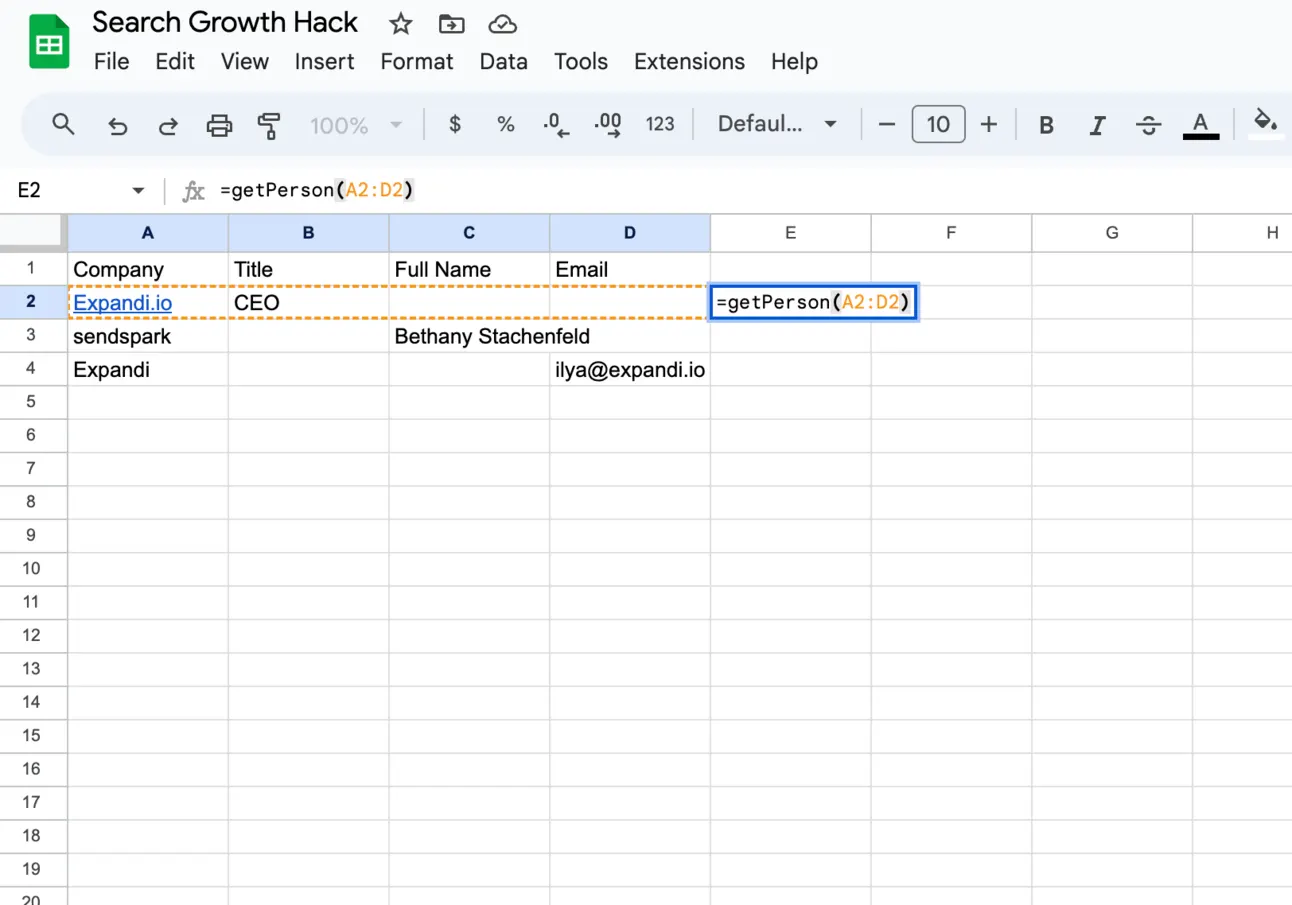
Click “Enter” and boom! You have the relevant info in just a second!
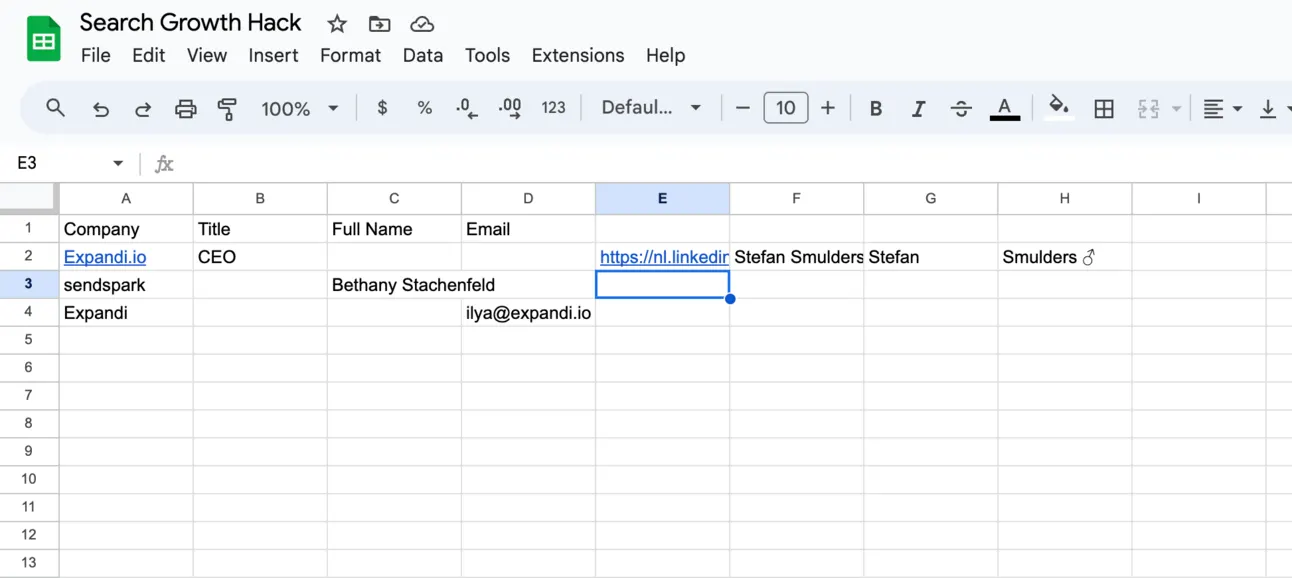
Apply this formula to the rest of rows you have:
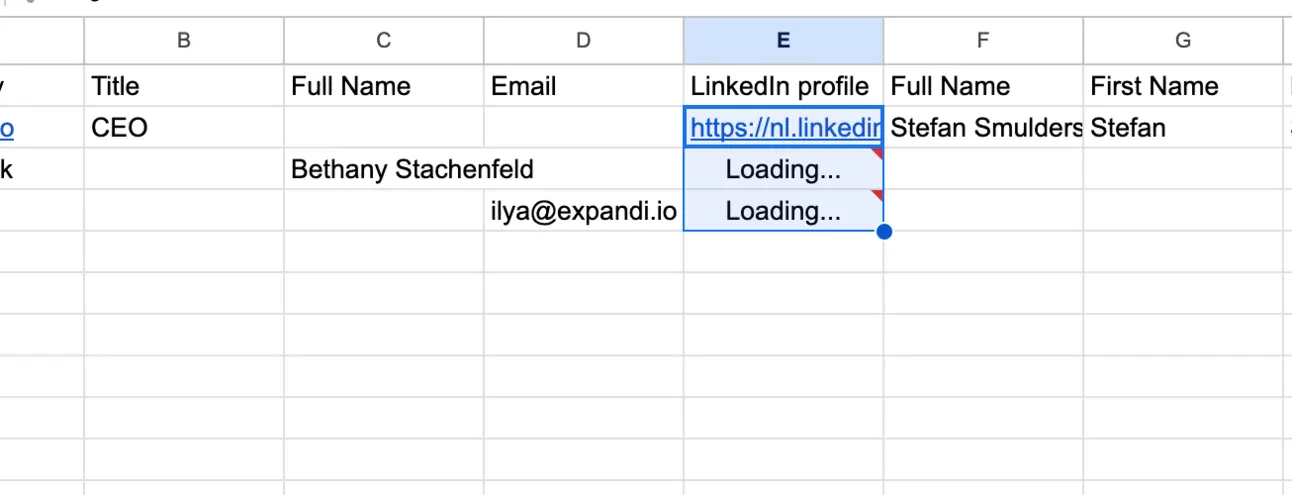
And voilà 🥐
You have all relevant info about other people!
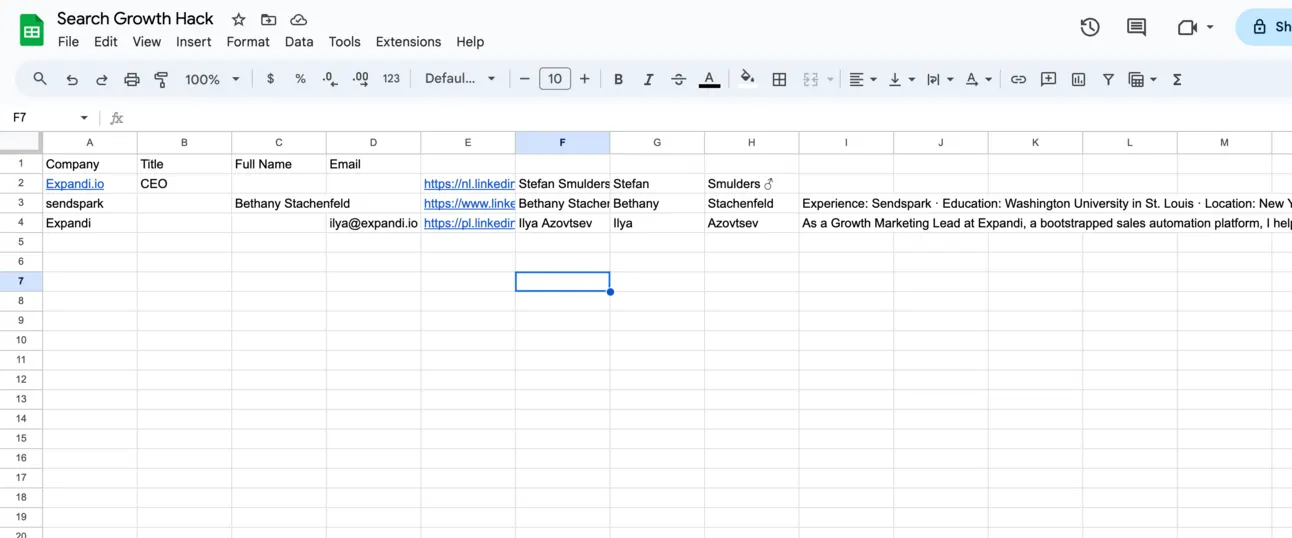
Again, this formula find a person’s LinkedIn URL based on different inputs you give and returns you:
- Full Name
- First Name
- Last Name
- LinkedIn profile URL
- About section (partially)
Summary
Now you can find anyone’s LinkedIn profile inside your Google Sheets! Use this growth hack to enrich the data in your CSV files and go multi-channel with your outbound campaigns!
Btw, if you like our content:
- Join Community
- Watch us on Youtube
- Let’s connect on LinkedIn (Ilya & Max)
Talk to the team that runs this every day
Book a 30-minute call. We look at your outbound and tell you what we would change first.

Ilya AzovtsevCo-founder
Co-founder of GrowthBand. Helped scale lemlist from $20k MRR to $10M ARR and built automation at Expandi; now runs the cold email infrastructure behind 32,000+ mailboxes.